How to Fix ERR_SSL_PROTOCOL_ERROR in Chrome
Learn how to fix ERR_SSL_PROTOCOL_ERROR in Chrome. Troubleshoot SSL certificates, HTTPS, Nginx, TLS settings, DNS, browser cache and server configuration.
Zonetic Hosting Team
Blogger & SEO Expert
In this article
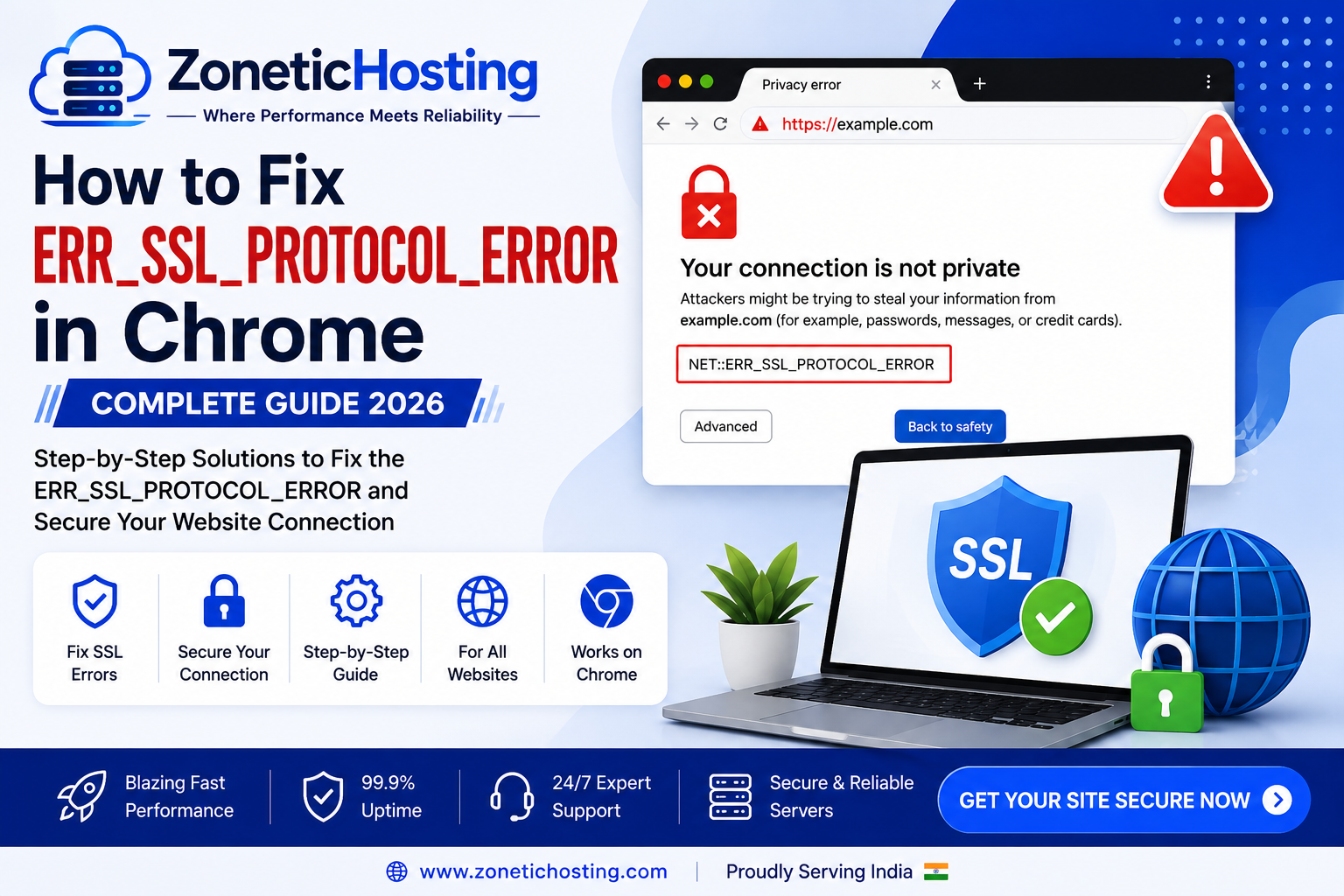
How to Fix ERR_SSL_PROTOCOL_ERROR in Chrome – Complete Guide
Are you trying to open a website over HTTPS but Chrome shows ERR_SSL_PROTOCOL_ERROR?
This error usually means that the browser and the website server could not establish a secure SSL/TLS connection. It can happen because of an expired SSL certificate, incorrect HTTPS configuration, DNS problems, incorrect server settings, browser cache, or an issue with the web server.
The ERR_SSL_PROTOCOL_ERROR is especially common when setting up SSL on an Ubuntu VPS, configuring Nginx, installing a Let's Encrypt certificate, or migrating a website to a new hosting server.
In this guide, we will explain what ERR_SSL_PROTOCOL_ERROR means, why it happens, and how to fix it on Chrome, Ubuntu VPS, Nginx, and other hosting environments.
What Does ERR_SSL_PROTOCOL_ERROR Mean?
SSL and TLS are security protocols used to establish encrypted communication between your browser and a website.
When you open:
https://example.com
your browser attempts to establish a secure connection with the server.
If the browser and server cannot agree on a valid SSL/TLS connection, Chrome may display:
This site can't provide a secure connection
or:
ERR_SSL_PROTOCOL_ERROR
In simple terms, the browser is unable to complete the secure HTTPS handshake with the website.
Common Causes of ERR_SSL_PROTOCOL_ERROR
There are several reasons why this error can appear:
SSL certificate is expired
SSL certificate is invalid
SSL certificate does not match the domain
Incorrect Nginx SSL configuration
Port 443 is blocked
Incorrect TLS configuration
DNS points to the wrong server
Old browser cache or SSL state
Server date and time are incorrect
Certbot or Let's Encrypt configuration is incomplete
SSL certificate files are missing
Incorrect certificate or private key path
Website is using an unsupported TLS configuration
Reverse proxy or CDN is incorrectly configured
Web server is not listening on HTTPS port
The exact solution depends on what is causing the SSL connection to fail.
How to Fix ERR_SSL_PROTOCOL_ERROR
1. Check Whether the Website Has a Valid SSL Certificate
The first step is to check the SSL certificate installed on your website.
Open the website using:
https://yourdomain.com
Click the padlock or security information icon in Chrome and inspect the certificate.
Check:
Certificate validity
Domain name
Expiration date
Certificate issuer
Certificate chain
If the certificate is expired or issued for a different domain, you need to install or renew the correct certificate.
2. Check the SSL Certificate Expiry
An expired SSL certificate can cause HTTPS connection problems.
If you are using Let's Encrypt with Certbot on Ubuntu, check the installed certificates:
sudo certbot certificates
You should see information about:
Certificate name
Domains
Expiration date
Certificate path
Private key path
If your certificate is expired, try renewing it:
sudo certbot renew
After a successful renewal, reload Nginx:
sudo systemctl reload nginx
3. Test Certbot Renewal
Before relying on automatic renewal, test the renewal process.
Run:
sudo certbot renew --dry-run
If the test succeeds, your renewal configuration is generally working correctly.
If Certbot reports an error, carefully read the message because it may identify a DNS, port, web server, or certificate configuration problem.
4. Check Your Domain DNS Records
SSL problems can sometimes occur because the domain is pointing to the wrong server.
Check your domain's DNS records.
For a VPS-hosted website, your A record should generally point to your VPS public IP.
Example:
Type: A
Name: @
Value: YOUR_VPS_IP
For example:
example.com → 203.0.113.20
If the domain points to another server, the SSL certificate installed on your VPS may not be the certificate that visitors receive.
You can test DNS resolution using:
nslookup example.com
or:
dig example.com
Make sure the returned IP address is the correct server.
5. Check Nginx SSL Configuration
If your website is running on Nginx, an incorrect SSL configuration is one of the most common server-side causes.
Open your Nginx configuration file and check the HTTPS server block.
A typical configuration may look similar to:
server {
    listen 443 ssl;
    server_name example.com www.example.com;

    ssl_certificate /etc/letsencrypt/live/example.com/fullchain.pem;
    ssl_certificate_key /etc/letsencrypt/live/example.com/privkey.pem;

    root /var/www/example;
}
The exact configuration depends on your website and server setup.
The important part is that the certificate and private key paths point to valid files.
6. Test Your Nginx Configuration
After changing your Nginx configuration, always test it before restarting the server.
Run:
sudo nginx -t
If the configuration is valid, Nginx should report that the syntax test is successful.
If you receive an error, fix the configuration before reloading Nginx.
Once the configuration is valid:
sudo systemctl reload nginx
7. Check Whether Port 443 Is Open
HTTPS normally uses port 443.
If port 443 is blocked, browsers may not be able to establish a secure connection.
On Ubuntu, check UFW:
sudo ufw status
If HTTPS is not allowed and your firewall setup requires it, you can allow port 443:
sudo ufw allow 443/tcp
You may also need HTTP for website access and certain Let's Encrypt validation methods:
sudo ufw allow 80/tcp
After changing firewall rules, test your website again.
8. Check Whether Nginx Is Listening on Port 443
Run:
sudo ss -tulpn | grep :443
You should see a service listening on port 443.
If nothing is listening on port 443, check your Nginx HTTPS configuration.
You can also check the Nginx service:
sudo systemctl status nginx
If Nginx is not running, investigate the service error and configuration before restarting it.
9. Check SSL Certificate File Paths
Incorrect certificate paths can prevent Nginx from loading SSL correctly.
For Let's Encrypt certificates, the files are commonly located under:
/etc/letsencrypt/live/
You can check the directory:
sudo ls -la /etc/letsencrypt/live/
A typical certificate directory may contain links such as:
cert.pem
chain.pem
fullchain.pem
privkey.pem
Your Nginx configuration should reference the appropriate certificate and private key.
For example:
ssl_certificate /etc/letsencrypt/live/example.com/fullchain.pem;
ssl_certificate_key /etc/letsencrypt/live/example.com/privkey.pem;
Do not use certificate paths from another server or domain.
10. Check the Server Date and Time
Incorrect system time can cause SSL certificate validation problems.
Check the server time:
date
You can also check the system's time synchronization status:
timedatectl
Look for whether network time synchronization is active.
An incorrect system clock can make a valid certificate appear to be expired or not yet valid.
11. Clear Chrome Cache and SSL Data
Sometimes Chrome can retain old connection information.
Try opening the website in an Incognito window.
If it works in Incognito mode, browser cache, cookies, or extensions may be involved.
You can also clear browsing data from:
Chrome → Settings → Privacy and security → Delete browsing data
Clear cached files and restart Chrome.
12. Check Your Computer's Date and Time
The client device's date and time can also affect SSL validation.
Make sure your computer has:
Correct date
Correct time
Correct time zone
Automatic time synchronization enabled
After correcting the system time, restart Chrome and try accessing the website again.
13. Try Another Browser or Device
To determine whether the problem is local, test the website using:
Firefox
Microsoft Edge
Safari
Another computer
Smartphone
Mobile data
If the website works on another device
The problem may be related to your browser, local DNS, system clock, VPN, or network.
If the website fails everywhere
The problem is more likely related to the website's SSL, DNS, server, or hosting configuration.
14. Disable VPN or Proxy Temporarily
A VPN or proxy can sometimes interfere with HTTPS connections.
If you are using one, temporarily disable it and try opening the website again.
If the website starts working, investigate the VPN or proxy configuration.
Do not permanently disable security software unless you understand the security implications.
15. Check TLS Configuration
SSL certificates and TLS protocols work together to establish secure connections.
An incorrect or overly restrictive TLS configuration can cause browser compatibility problems.
For example, an old or incorrectly configured Nginx server may prevent modern browsers from completing the TLS handshake.
If you have manually configured TLS settings, review your Nginx SSL configuration carefully.
Avoid copying random SSL configurations from outdated tutorials because TLS recommendations change over time.
16. Check Nginx Error Logs
Nginx logs can provide useful information when troubleshooting SSL problems.
Run:
sudo tail -f /var/log/nginx/error.log
Then try opening the HTTPS version of your website.
Look for messages related to:
SSL
TLS
Certificate
Private key
Handshake
Port 443
Connection errors
The log message can often tell you exactly which part of the configuration is failing.
17. Check the SSL Certificate From the Server
You can use OpenSSL to inspect the HTTPS connection.
Run:
openssl s_client -connect example.com:443 -servername example.com
This command can provide information about the TLS connection and certificate being presented by the server.
Look for certificate and handshake errors in the output.
This is particularly useful when troubleshooting SSL problems on a VPS.
18. Check for Incorrect HTTP to HTTPS Redirects
Sometimes a website has multiple redirect rules that interfere with HTTPS.
For example:
HTTP → HTTPS → HTTP → HTTPS
or a proxy may redirect the request while Nginx also performs its own redirect.
This can create HTTPS problems or redirect loops.
Check your Nginx configuration and any CDN or reverse proxy settings.
Make sure there is a clear and consistent HTTP-to-HTTPS configuration.
19. Check Cloud or CDN SSL Settings
If your website uses a CDN or reverse proxy, SSL may be configured at multiple levels.
For example:
Visitor
   ↓
CDN / Proxy
   ↓
Nginx
   ↓
Website
In this setup, the CDN and origin server both need compatible HTTPS configurations depending on the selected mode.
If you recently changed your CDN SSL settings, temporarily review those settings and verify that the origin server is correctly configured for the selected mode.
20. Restart Nginx After Fixing the Configuration
Once you have corrected the SSL configuration, test Nginx:
sudo nginx -t
If the test is successful, reload Nginx:
sudo systemctl reload nginx
If a complete restart is necessary:
sudo systemctl restart nginx
Then test:
https://yourdomain.com
How to Fix ERR_SSL_PROTOCOL_ERROR on Ubuntu VPS
If you are managing an Ubuntu VPS, follow this order:
Step 1: Check DNS
dig example.com
Make sure the domain points to the correct VPS IP.
Step 2: Check SSL
sudo certbot certificates
Verify that the certificate is valid and has not expired.
Step 3: Check Nginx
sudo nginx -t
Step 4: Check Port 443
sudo ss -tulpn | grep :443
Step 5: Check Firewall
sudo ufw status
Step 6: Check Logs
sudo tail -f /var/log/nginx/error.log
Step 7: Reload Nginx
sudo systemctl reload nginx
This sequence helps isolate whether the problem is related to DNS, SSL, Nginx, firewall, or the VPS itself.
ERR_SSL_PROTOCOL_ERROR vs Other SSL Errors
Several browser errors can look similar but have different causes.
ERR_SSL_PROTOCOL_ERROR
The browser cannot complete a valid SSL/TLS connection.
NET::ERR_CERT_DATE_INVALID
The certificate date is invalid, expired, or the device/server clock is incorrect.
NET::ERR_CERT_COMMON_NAME_INVALID
The certificate does not match the domain being accessed.
NET::ERR_CERT_AUTHORITY_INVALID
The browser does not trust the certificate issuer or certificate chain.
ERR_TOO_MANY_REDIRECTS
The website is stuck in a redirect loop, often involving HTTP and HTTPS configuration.
Understanding the exact error makes troubleshooting much easier.
Quick ERR_SSL_PROTOCOL_ERROR Checklist
Use this checklist when your website shows the error:
✓ Check the domain DNS
✓ Verify the VPS IP address
✓ Check SSL certificate validity
✓ Check certificate expiry
✓ Check certificate domain name
✓ Check certificate and private key paths
✓ Test Nginx configuration
✓ Check port 443
✓ Check firewall rules
✓ Check server date and time
✓ Clear browser cache
✓ Test another browser
✓ Disable VPN or proxy temporarily
✓ Check TLS configuration
✓ Check Nginx error logs
✓ Test with OpenSSL
✓ Check CDN or proxy SSL settings
✓ Reload Nginx
How to Prevent SSL Errors
Once your SSL certificate is working, there are a few things you can do to prevent future problems.
Keep SSL Certificates Renewed
If you use Let's Encrypt, make sure automatic renewal is working.
Test it periodically with:
sudo certbot renew --dry-run
Monitor Certificate Expiration
Do not wait until your certificate expires before checking it.
Keep Nginx Configuration Clean
Avoid unnecessary SSL directives and outdated TLS configurations.
Keep DNS Updated
If you migrate your website to another VPS, update the domain's DNS records correctly.
Monitor Your VPS
Keep an eye on:
CPU usage
RAM usage
Disk space
Network connectivity
Nginx status
SSL certificate status
Regular monitoring can help prevent unexpected website downtime.
Final Thoughts
The ERR_SSL_PROTOCOL_ERROR usually means that your browser could not establish a valid secure HTTPS connection with the website.
The cause may be something simple, such as an expired SSL certificate or incorrect system time, or something server-side, such as an Nginx configuration problem, blocked port 443, incorrect certificate paths, DNS issues, or incompatible TLS settings.
If you manage your website on an Ubuntu VPS, start by checking DNS, SSL certificate status, Nginx configuration, port 443, firewall rules, and server logs.
Once the underlying problem is fixed, reload Nginx and test the HTTPS version of your website again.
A properly configured SSL certificate, updated DNS records, reliable hosting infrastructure, and automatic certificate renewal can help keep your website secure and accessible over HTTPS.

Have a question about hosting?
Our team can help you pick the right plan for your website.