How to Migrate a Website to New Hosting: Complete Guide
Learn how to migrate a website to new hosting step by step, including files, databases, DNS, SSL, email and WordPress with minimal downtime.
Zonetic Hosting Team
Blogger & SEO Expert
In this article
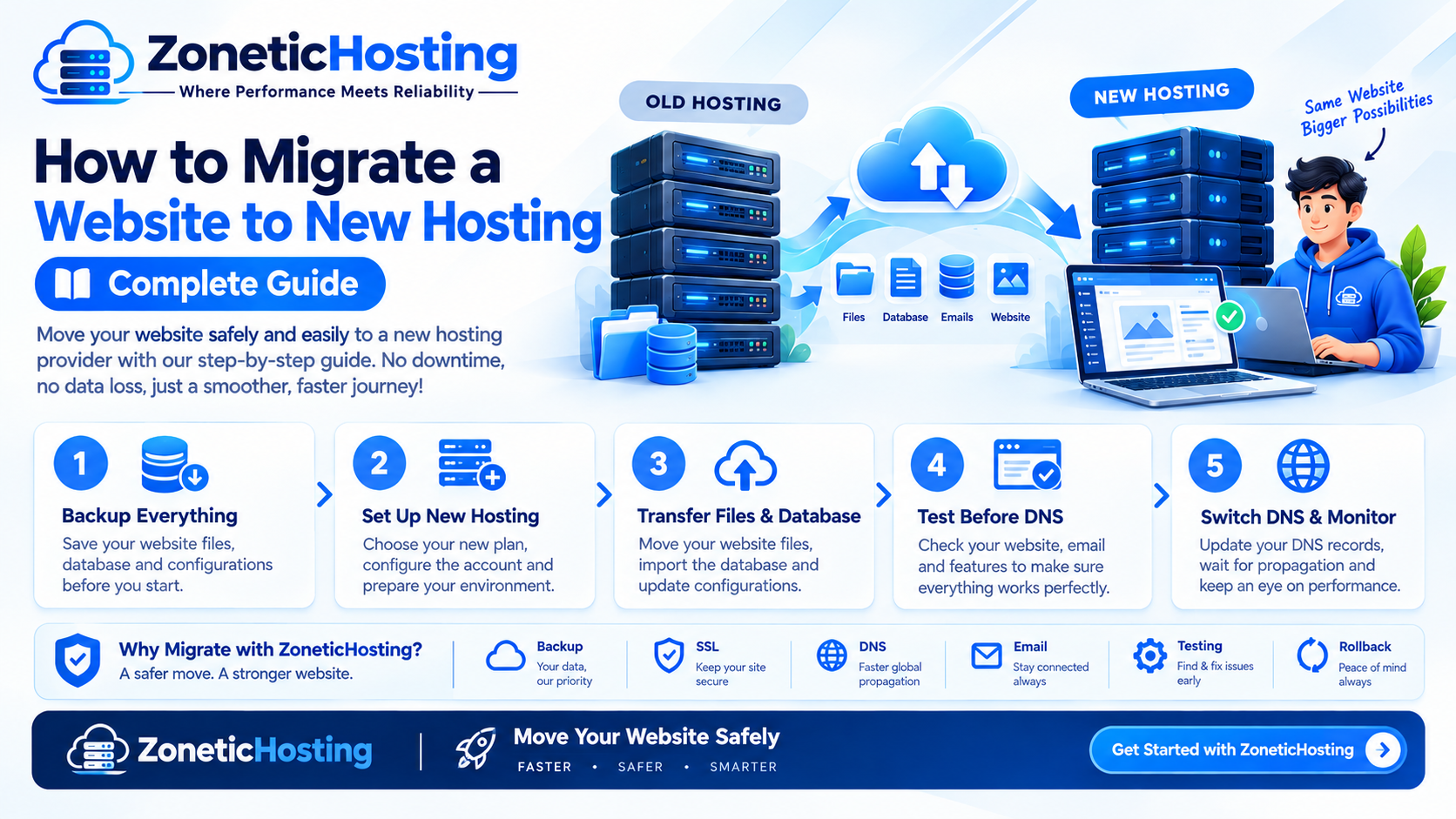
How to Migrate a Website to New Hosting: Complete Step-by-Step Guide
Moving your website from one hosting provider to another may sound complicated, but the process is actually straightforward when you follow the right steps.
Whether you are moving because of slow website speed, expensive hosting, poor customer support, limited resources, or simply looking for better performance, you can migrate your website to a new hosting provider with minimal downtime.
In this guide, we will explain how to migrate a website to new hosting step by step, including files, databases, DNS, SSL, email, and final testing.
What Is Website Migration?
Website migration is the process of moving your website from your current hosting server to a new hosting server.
A typical website migration involves moving:
Website files
Databases
Images and media
Email accounts
DNS settings
SSL certificate
Configuration files
Domain-related settings
For WordPress websites, the database and WordPress files must both be transferred correctly.
Why Should You Move Your Website to New Hosting?
There can be several reasons to migrate your website.
1. Better Website Speed
If your current hosting server is slow or overloaded, moving to faster hosting can improve your website's loading speed.
2. Better Server Resources
Your website may need more CPU, RAM, storage, or bandwidth as it grows. Upgrading to a better hosting plan can provide the resources you need.
3. Better Support
Reliable technical support can make managing your website much easier, especially when you experience server or configuration issues.
4. Lower Hosting Costs
You may find a hosting provider that offers better resources at a more affordable price.
5. Improved Security
Modern hosting providers may offer features such as SSL, firewall protection, malware scanning, backups, and other security tools.
Things to Do Before Migrating Your Website
Before starting the migration, create a complete backup of your existing website.
Your backup should include:
Website files
Database
Email data, if required
DNS records
Configuration files
Important account settings
Do not cancel your old hosting account immediately.
Keep your old hosting active until you have completely tested the website on the new server.
Step 1: Purchase Your New Hosting
First, purchase a suitable hosting plan from your new hosting provider.
Choose a plan based on your website's requirements, including:
Storage
RAM
CPU
Bandwidth
Number of websites
Email accounts
Database limits
Backup options
SSL support
If you are moving a small business website or WordPress website, shared hosting can often be sufficient. Larger websites may require VPS or cloud hosting.
Step 2: Create a Backup of Your Website
The next step is to create a complete backup.
If you are using a hosting control panel, you may be able to download your website files using File Manager or FTP/SFTP.
For example, your website files may be located inside a directory such as:
public_html
Download the complete directory to your computer or another secure location.
Backup Your Database
If your website uses MySQL or MariaDB, you also need to export its database.
You can usually do this using phpMyAdmin:
Log in to phpMyAdmin.
Select your website database.
Click Export.
Select the SQL format.
Download the database backup.
Keep both the website files and database backup safe.
Step 3: Upload Your Website Files to the New Hosting
After your new hosting account is ready, upload your website files to the new server.
Depending on your hosting provider, you can use:
File Manager
FTP
SFTP
SSH
For a typical website, upload the files into the appropriate website directory, such as:
public_html
Make sure the complete folder structure is preserved.
For example:
public_html/
├── index.php
├── wp-config.php
├── wp-content/
├── wp-admin/
└── wp-includes/
Do not accidentally upload the website files into an extra nested folder such as:
public_html/website/public_html/
Step 4: Create a Database on the New Server
If your website uses a database, create a new database on the new hosting server.
You will normally need:
Database name
Database username
Database password
Database host
In many hosting environments, the database host is:
localhost
However, this can vary depending on your hosting environment.
Step 5: Import Your Database
Once the new database has been created, import your old database backup.
Using phpMyAdmin:
Open phpMyAdmin.
Select the new database.
Click Import.
Select your
.sqlbackup file.Start the import.
After the import is completed, verify that the database tables are visible.
Step 6: Update Your Website Configuration
Your website needs to know how to connect to the new database.
For a WordPress website, check the wp-config.php file.
You may need to update:
define('DB_NAME', 'new_database');
define('DB_USER', 'new_database_user');
define('DB_PASSWORD', 'your_database_password');
define('DB_HOST', 'localhost');
Use the actual database details created on your new hosting account.
Do not share your database password publicly.
Step 7: Test Your Website Before Changing DNS
This is one of the most important steps.
Before pointing your domain to the new server, test your website on the new hosting environment.
Check:
Homepage
Internal pages
Images
Contact forms
Login
WordPress dashboard
Database functionality
Plugins
Themes
Downloads
Website URLs
Mobile responsiveness
If possible, use a temporary URL, hosts-file configuration, or another testing method provided by your hosting provider.
Step 8: Update DNS Records
Once you are confident that your website works correctly on the new server, update your domain's DNS records.
Usually, you will either change:
A Record
Point the domain to the new server IP address.
For example:
example.com → NEW SERVER IP
or change the domain's:
Nameservers
For example:
ns1.newhost.com
ns2.newhost.com
The exact DNS configuration depends on your hosting provider.
Step 9: Wait for DNS Propagation
DNS changes do not always take effect everywhere immediately.
Some users may continue reaching the old server temporarily while others reach the new server.
DNS propagation can vary depending on DNS records, TTL settings, caching, and the resolver being used.
During this period, keep your old hosting account active.
Step 10: Install and Verify SSL
After your domain starts pointing to the new server, install an SSL certificate.
Most modern hosting providers support free SSL certificates such as Let's Encrypt.
Once SSL is active, verify that your website loads correctly using:
https://yourdomain.com
Also check that HTTP requests redirect correctly to HTTPS if that is your intended configuration.
Step 11: Test Email Accounts
If your domain uses email, don't forget to verify your email configuration.
Check:
MX records
SPF
DKIM
DMARC
Email accounts
Incoming mail
Outgoing mail
If you are moving email hosting as well, make sure the required mailboxes and messages are migrated before changing the relevant DNS records.
Step 12: Check Your Website After Migration
After DNS has updated, perform a complete test again.
Check:
Website
Homepage loads
Pages work
Images load
Forms work
Login works
Performance
Website loading speed
Server response time
Caching
CDN, if used
Security
HTTPS works
SSL certificate is valid
Admin login works
Firewall/security settings are enabled
SEO
URLs have not changed unnecessarily
Meta titles and descriptions are present
Sitemap works
Robots.txt works
Google Search Console is functioning
No important pages return 404 errors
How Long Does Website Migration Take?
The actual file and database transfer can take anywhere from a few minutes to several hours depending on the size of the website.
DNS changes may take additional time to propagate.
A small website can often be migrated relatively quickly, while large websites with large databases, media files, email accounts, or complex applications may require more preparation.
How to Migrate a WordPress Website to New Hosting
For WordPress, the basic migration process is:
Backup WordPress files.
Export the WordPress database.
Purchase new hosting.
Upload WordPress files.
Create a new database.
Import the database.
Update
wp-config.php.Test the website.
Update DNS.
Install/verify SSL.
Test the website again.
You can also use WordPress migration plugins to simplify the process, but manual migration gives you more control over the files and database.
Common Website Migration Problems
1. Database Connection Error
If you see an error such as "Error establishing a database connection", check your database name, username, password, and database host.
2. 404 Errors
Incorrect .htaccess, rewrite rules, or missing files can cause 404 errors.
For WordPress, go to:
Settings → Permalinks
and save the permalink settings again.
3. SSL Not Working
Make sure the domain is pointing to the new server and the SSL certificate has been successfully issued.
4. Website Shows a Blank Page
This can be caused by PHP version incompatibility, plugin errors, missing files, incorrect permissions, or configuration problems.
Check your server and PHP error logs.
5. Email Stops Working
Incorrect MX, SPF, DKIM, or other DNS records can cause email delivery problems after migration.
How to Migrate a Website Without Downtime
Complete zero downtime cannot always be guaranteed, but downtime can usually be minimized.
A safer migration process is:
Set up the new hosting server.
Copy your website files.
Copy the database.
Test everything on the new server.
Reduce DNS TTL before migration when appropriate.
Update DNS.
Keep the old server active during DNS propagation.
Monitor the new server.
Shut down the old hosting only after everything is confirmed.
For websites with frequent database changes, you may need a final database synchronization immediately before switching DNS.
Final Website Migration Checklist
Before cancelling your old hosting, make sure:
Website files transferred
Database transferred
Configuration updated
Website tested
DNS updated
SSL installed
Email tested
Forms tested
Images checked
404 errors checked
Website speed checked
Backups configured
Google Search Console checked
Old hosting still available as a backup
Only cancel your old hosting after you are completely confident that everything is working correctly.
Conclusion
Migrating a website to new hosting does not have to be difficult. The key is to take a complete backup, move both your files and database, test the website before changing DNS, and keep your old hosting active until the migration is confirmed.
If you are looking for reliable web hosting with resources suitable for business websites, WordPress websites, and other online projects, choosing a hosting provider with good performance, support, security, and backup options can make future website management much easier.
Planning to move your website to new hosting? Make a backup first, prepare the new server, migrate your files and database, test everything, and then update your DNS.

Have a question about hosting?
Our team can help you pick the right plan for your website.