How to Fix ERR_CONNECTION_TIMED_OUT Error
ERR_CONNECTION_TIMED_OUT in Chrome? Learn how to fix website timeout errors caused by DNS, network, firewall, server, VPS, Nginx and hosting issues.
Zonetic Hosting Team
Blogger & SEO Expert
In this article
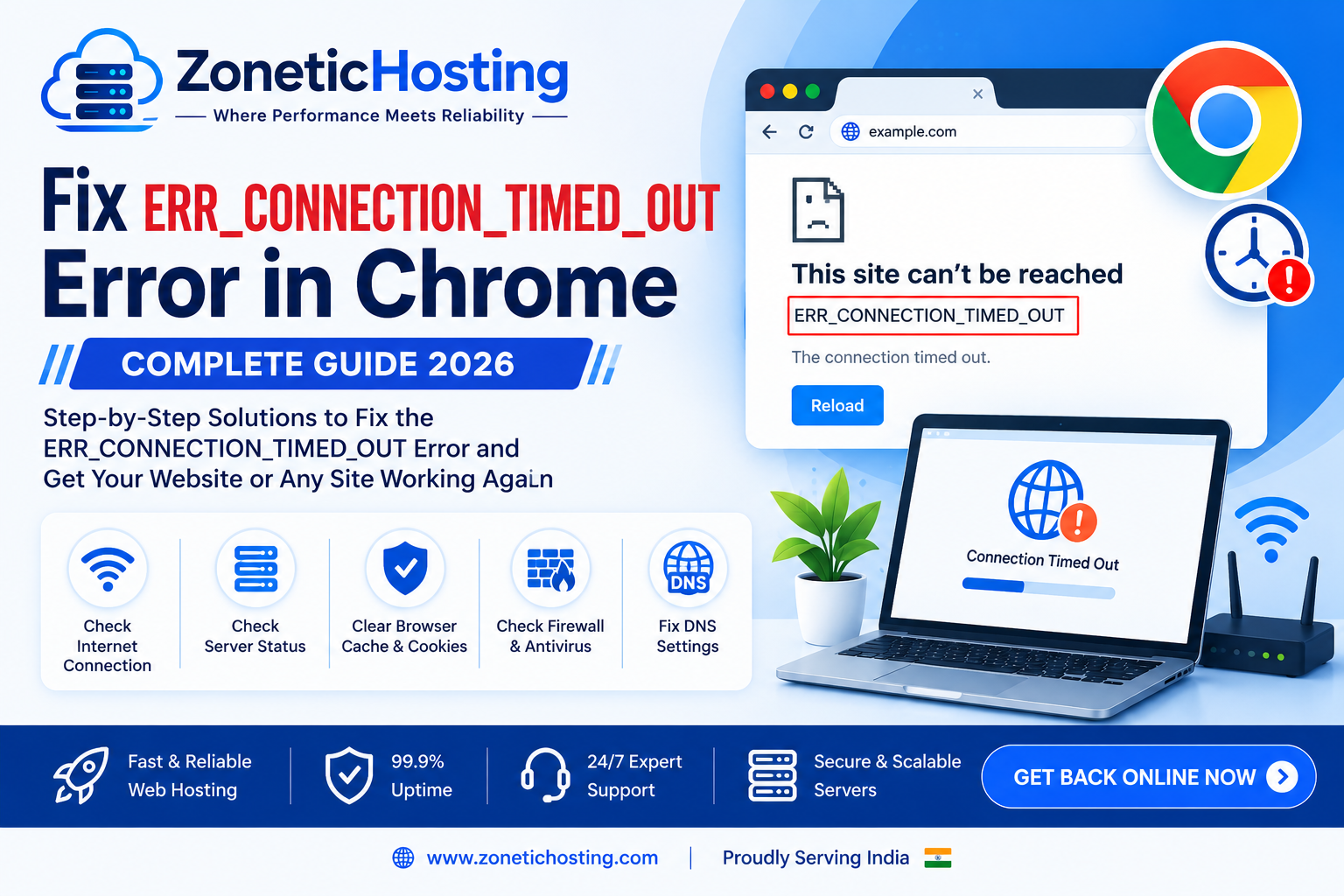
How to Fix ERR_CONNECTION_TIMED_OUT Error in Chrome – Complete Guide
Seeing ERR_CONNECTION_TIMED_OUT in Google Chrome means your browser tried to connect to a website, but the server did not respond within the expected time. This can happen because of DNS problems, network issues, firewall restrictions, server overload, incorrect Nginx configuration, VPS problems, or hosting issues.
If your website is showing “This site can’t be reached” followed by ERR_CONNECTION_TIMED_OUT, don't worry. In most cases, the problem can be identified and fixed with a few simple troubleshooting steps.
In this guide, we will explain what ERR_CONNECTION_TIMED_OUT means and show you how to fix it on your computer, domain, hosting account, VPS, Ubuntu server, and Nginx configuration.
What Does ERR_CONNECTION_TIMED_OUT Mean?
The ERR_CONNECTION_TIMED_OUT error occurs when Chrome attempts to establish a connection with a website but does not receive a response from the destination server within the allowed time.
For example, when you open:
https://example.com
your browser needs to:
Resolve the domain through DNS.
Find the server's IP address.
Connect to the server.
Establish a connection on port 80 or 443.
Receive a response from the web server.
If the connection gets stuck during this process, Chrome may eventually display:
ERR_CONNECTION_TIMED_OUT
The problem can be on your computer, internet connection, DNS, firewall, hosting server, VPS, or the website itself.
Common Causes of ERR_CONNECTION_TIMED_OUT
Some common reasons include:
Slow or unstable internet connection
DNS problems
Incorrect DNS records
Incorrect nameservers
Server is offline
VPS is overloaded
Firewall blocking ports
Port 80 or 443 is closed
Nginx or Apache is not running
Incorrect Nginx configuration
Cloudflare configuration problems
Server network problems
Hosting account issues
Website receiving too much traffic
Browser cache or DNS cache problems
Before making server changes, determine whether the problem is happening only on your device or for everyone visiting the website.
How to Fix ERR_CONNECTION_TIMED_OUT in Chrome
1. Check Your Internet Connection
First, make sure your internet connection is working correctly.
Open another website such as:
https://google.com
or
https://youtube.com
If multiple websites are not opening, the problem is probably related to your internet connection.
You can also try switching from Wi-Fi to mobile hotspot.
If the website works using mobile data but not Wi-Fi, your router, ISP, or local DNS configuration may be causing the issue.
2. Restart Your Router
A temporary network problem can sometimes cause connection timeouts.
Turn off your router and wait around 30 seconds.
Then turn it back on and wait for the internet connection to become active.
After that, try opening the website again.
3. Try the Website in Incognito Mode
Chrome extensions, cookies, or cached data can occasionally interfere with connections.
Open Chrome Incognito mode:
Command + Shift + N
on Mac.
Or use:
Ctrl + Shift + N
on Windows/Linux.
Then open the website again.
If the website works in Incognito mode, try disabling Chrome extensions or clearing browser data.
4. Clear Chrome Cache
Old cached information can sometimes cause website loading problems.
In Chrome, open:
chrome://settings/clearBrowserData
Select cached images and files and clear the browser cache.
Then restart Chrome and test the website again.
5. Flush DNS Cache
DNS cache stores previously resolved domain information. If the cached information is incorrect or outdated, your browser may try to connect to the wrong IP address.
On Windows
Open Command Prompt and run:
ipconfig /flushdns
You should see a message indicating that the DNS Resolver Cache was successfully flushed.
On macOS
Open Terminal and run:
sudo dscacheutil -flushcache
sudo killall -HUP mDNSResponder
Enter your Mac password if requested.
Then try opening the website again.
6. Change Your DNS Server
Your ISP's DNS server may sometimes have problems resolving a domain correctly.
You can test the website using public DNS services such as:
Google DNS:
8.8.8.8
8.8.4.4
or:
Cloudflare DNS:
1.1.1.1
1.0.0.1
After changing DNS, reconnect to the internet and test your website again.
7. Check the Domain DNS Records
If you manage the website, check whether the domain is pointing to the correct server.
For example, an A record may look like:
Type: A
Name: @
Value: YOUR_VPS_IP
For the www subdomain, you might use:
Type: CNAME
Name: www
Value: example.com
If the A record points to the wrong IP address, visitors may not reach your server.
You can check DNS from your terminal using:
nslookup example.com
or:
dig example.com
You can also check the IP returned by:
dig +short example.com
The returned IP should normally match your hosting server's public IP.
8. Check DNS Using nslookup
Run:
nslookup example.com
You should get something similar to:
Name: example.com
Address: 203.0.113.10
If the domain returns an unexpected IP address, check your DNS records.
If the domain does not resolve at all, investigate the domain's nameservers and DNS configuration.
9. Check DNS Using dig
Linux and macOS users can use:
dig example.com
For a simpler result:
dig +short example.com
You can also check the nameservers:
dig NS example.com
And check the A record:
dig A example.com
These commands are extremely useful when troubleshooting hosting and VPS-related connection problems.
10. Check Whether the Server Is Online
If the DNS is correct but the website still times out, check the server.
For example:
ping YOUR_VPS_IP
You can also test the website directly:
curl -I http://example.com
For HTTPS:
curl -I https://example.com
If the request hangs and eventually times out, there may be a server, firewall, network, or web-server problem.
11. Check Ports 80 and 443
Websites normally use:
Port 80  → HTTP
Port 443 → HTTPS
If these ports are blocked, visitors may experience connection timeouts.
On Ubuntu, check firewall status:
sudo ufw status
If UFW is enabled, make sure HTTP and HTTPS are allowed:
sudo ufw allow 80/tcp
sudo ufw allow 443/tcp
Then check again:
sudo ufw status
You should see rules allowing ports 80 and 443.
12. Check Whether Nginx Is Running
If your website uses Nginx, check its status:
sudo systemctl status nginx
If Nginx is stopped, start it:
sudo systemctl start nginx
To make Nginx start automatically after reboot:
sudo systemctl enable nginx
Then test the configuration:
sudo nginx -t
A successful configuration should show something similar to:
syntax is ok
test is successful
If the configuration has an error, fix it before restarting Nginx.
13. Restart Nginx
If Nginx is running but behaving unexpectedly, restart it:
sudo systemctl restart nginx
Then check:
sudo systemctl status nginx
Test the website again.
14. Check Nginx Error Logs
Nginx logs can reveal why a website is not responding.
Check the error log:
sudo tail -f /var/log/nginx/error.log
For access logs:
sudo tail -f /var/log/nginx/access.log
Then open your website in another browser tab.
If requests appear in the access log but the browser still waits, investigate the upstream application or Nginx configuration.
If no requests appear at all, check DNS, firewall, networking, and port configuration.
15. Check Whether Your Application Is Running
If Nginx is configured as a reverse proxy, the actual application may be running on another port.
For example:
proxy_pass http://127.0.0.1:3000;
Your application must actually be running on port 3000.
Check listening ports:
sudo ss -tulpn
You may see something like:
LISTEN 0 511 127.0.0.1:3000
If the application is not listening on the expected port, Nginx may not be able to reach it.
16. Check VPS Resources
A heavily overloaded VPS can cause websites to become extremely slow or stop responding.
Check memory:
free -h
Check CPU and running processes:
top
You can also use:
htop
if installed.
Check disk space:
df -h
If the server has almost no free RAM or disk space, applications may stop responding properly.
For example, a Node.js application under heavy load may consume a large amount of memory and become unresponsive.
17. Check Server Load
Use:
uptime
You may see:
load average: 0.20, 0.30, 0.25
Very high load compared with the number of CPU cores can indicate that the server is under heavy workload.
You can investigate CPU-consuming processes with:
top
18. Check Your Server Firewall
Besides UFW, your VPS provider may have an external firewall or security group.
Check whether these ports are allowed:
80/tcp
443/tcp
If your VPS provider has a cloud firewall, make sure HTTP and HTTPS traffic are permitted there as well.
A server can have UFW configured correctly while an external firewall still blocks incoming traffic.
19. Test the Website Using curl
The curl command is useful for checking whether the server is responding.
Run:
curl -I https://example.com
A working website may return:
HTTP/2 200
or:
HTTP/1.1 200 OK
You can also use:
curl -v https://example.com
The verbose output can help identify whether the problem occurs during DNS resolution, TCP connection, TLS negotiation, or HTTP response.
20. Test the Server IP Directly
If DNS is suspected, test your VPS IP directly:
curl -I http://YOUR_VPS_IP
If the IP responds but the domain does not, investigate DNS or the Nginx server_name configuration.
For example:
server {
    listen 80;
    server_name example.com www.example.com;

    ...
}
Make sure the domain is correctly configured in your Nginx server block.
21. Check Cloudflare Configuration
If your website uses Cloudflare, check the DNS record and proxy settings.
Make sure the domain points to the correct server IP.
Also verify that your VPS allows traffic from Cloudflare.
If the website works when connecting directly to the server but fails through Cloudflare, investigate the Cloudflare DNS, SSL, firewall, and origin server configuration.
22. Try Another Network
One of the easiest ways to identify the source of a timeout is to test the website from another network.
For example:
Wi-Fi
Mobile hotspot
Another computer
Another ISP
If the website works on mobile data but not Wi-Fi, the problem may be related to your local network or ISP.
If the website fails everywhere, the problem is more likely to be related to the domain, server, DNS, firewall, or hosting configuration.
23. Check Domain Nameservers
If you recently changed hosting providers, check your nameservers.
For example:
ns1.example.com
ns2.example.com
Make sure the domain is using the correct nameservers.
After changing nameservers or DNS records, changes may take some time to become visible across different DNS resolvers.
24. Ubuntu VPS Quick Troubleshooting Commands
If your website is hosted on an Ubuntu VPS, run these commands one by one:
Check DNS
dig +short example.com
Check server connectivity
ping YOUR_VPS_IP
Check HTTP
curl -I http://example.com
Check HTTPS
curl -I https://example.com
Check Nginx
sudo systemctl status nginx
Test Nginx configuration
sudo nginx -t
Check listening ports
sudo ss -tulpn
Check firewall
sudo ufw status
Check memory
free -h
Check disk
df -h
Check server load
uptime
Check Nginx errors
sudo tail -50 /var/log/nginx/error.log
These commands can help identify most common causes of website connection timeouts on an Ubuntu VPS.
ERR_CONNECTION_TIMED_OUT vs Other Chrome Errors
It is important to understand the difference between common connection errors.
ERR_CONNECTION_TIMED_OUT
The browser waited for a response but did not receive one in time.
Possible causes:
Firewall
Server offline
Network problem
Port blocked
Server overload
ERR_CONNECTION_REFUSED
The server was reachable, but the connection was actively rejected.
Common causes:
Service not running
Port closed
Nginx/Apache stopped
ERR_CONNECTION_RESET
The connection was established or attempted but then unexpectedly closed.
Possible causes:
Firewall
Server configuration
Network interruption
Proxy problems
DNS_PROBE_FINISHED_NXDOMAIN
The domain could not be resolved to an IP address.
Possible causes:
Incorrect DNS
Missing DNS record
Nameserver issue
Domain configuration problem
Understanding these differences makes troubleshooting much easier.
How to Prevent ERR_CONNECTION_TIMED_OUT
If you manage a website or VPS, you can reduce the chances of connection timeout problems by following these practices:
Keep DNS records correctly configured.
Monitor VPS CPU and RAM usage.
Keep Nginx or Apache updated.
Keep ports 80 and 443 accessible.
Configure firewall rules correctly.
Monitor server uptime.
Check application processes regularly.
Monitor Nginx error logs.
Use reliable DNS services.
Keep sufficient disk space available.
Configure server resources according to website traffic.
Use CDN protection when appropriate.
Keep SSL and HTTPS configuration properly maintained.
For businesses, reliable hosting and server monitoring are especially important because repeated downtime can affect visitors, conversions, and search visibility.
Quick Fix Checklist
If you are getting ERR_CONNECTION_TIMED_OUT, follow this checklist:
☐ Check your internet connection
☐ Restart your router
☐ Try Chrome Incognito mode
☐ Clear browser cache
☐ Flush DNS cache
☐ Try another DNS server
☐ Check domain A record
☐ Check nameservers
☐ Run nslookup or dig
☐ Check whether the VPS is online
☐ Check ports 80 and 443
☐ Check UFW firewall
☐ Check external VPS firewall
☐ Check Nginx status
☐ Run nginx -t
☐ Check Nginx error logs
☐ Check application status
☐ Check CPU and RAM
☐ Check disk space
☐ Test with curl
☐ Test from another network
Final Thoughts
The ERR_CONNECTION_TIMED_OUT error usually means that Chrome could not get a response from the destination server within the expected time. The cause can be something simple like a temporary internet or DNS problem, or it can be a server-side issue involving firewalls, Nginx, VPS resources, ports, or hosting configuration.
If you are a website owner, start by checking the domain's DNS records and server IP. Then verify ports 80 and 443, Nginx status, firewall rules, server resources, and application processes.
For Ubuntu VPS users, commands such as dig, curl, ss, systemctl, ufw, free, and df can quickly help identify where the connection is failing.
Once you identify whether the issue is with DNS, network, firewall, web server, application, or VPS resources, the timeout can usually be resolved without reinstalling the entire server.

Have a question about hosting?
Our team can help you pick the right plan for your website.