How to Fix ERR_CONNECTION_REFUSED Error in Chrome
Getting ERR_CONNECTION_REFUSED in Chrome? Learn how to fix connection refused errors caused by servers, ports, firewalls, Nginx, VPS and hosting issues.
Zonetic Hosting Team
Blogger & SEO Expert
In this article
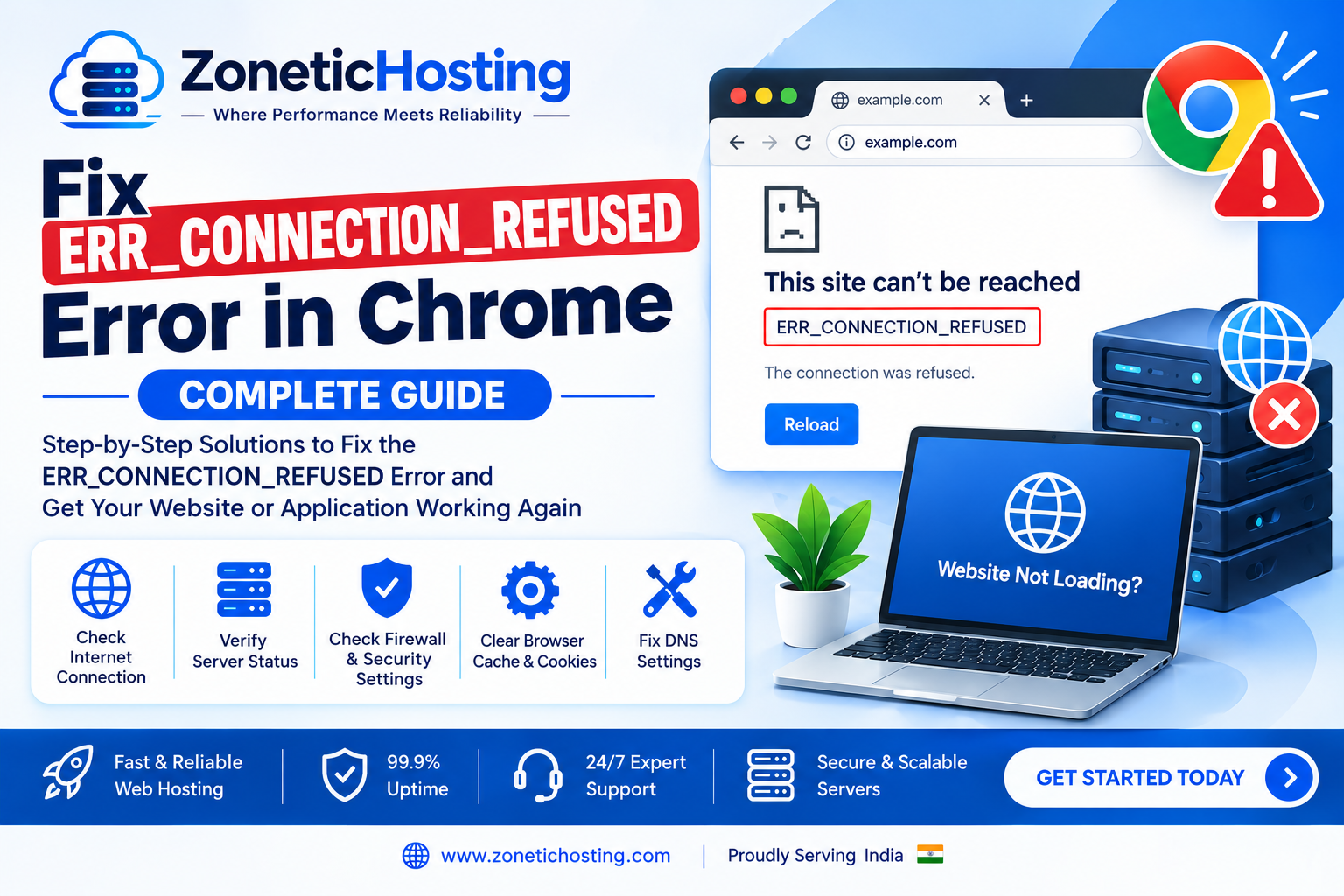
How to Fix ERR_CONNECTION_REFUSED Error in Chrome – Complete Guide
Getting ERR_CONNECTION_REFUSED in Google Chrome means that your browser tried to connect to a website, but the connection was actively refused by the destination server.
Unlike a connection timeout, where the browser keeps waiting for a response, ERR_CONNECTION_REFUSED usually means that the server is reachable but nothing is accepting the connection on the requested port, or a firewall/security rule is rejecting the connection.
This error is common when a website's server is down, Nginx or Apache is stopped, ports 80 or 443 are blocked, a VPS firewall is misconfigured, or an application is not running correctly.
In this guide, you'll learn how to fix ERR_CONNECTION_REFUSED in Chrome and troubleshoot the issue from your computer, domain, hosting account, VPS, Ubuntu server, firewall, and Nginx configuration.
What Does ERR_CONNECTION_REFUSED Mean?
When you open a website, Chrome needs to establish a connection with the web server.
For example:
https://example.com
The browser typically needs to:
Resolve the domain name through DNS.
Find the server IP address.
Connect to the server.
Connect to the correct port, usually 80 or 443.
Receive a response from the web server.
If the server refuses the connection, Chrome may display:
This site can't be reached

example.com refused to connect.

ERR_CONNECTION_REFUSED
This generally indicates a server-side, firewall, port, or local network problem.
Common Causes of ERR_CONNECTION_REFUSED
There are several possible causes of this Chrome error:
Web server is stopped
Nginx is not running
Apache is not running
Application is not running
Port 80 is closed
Port 443 is closed
VPS firewall is blocking traffic
Hosting firewall is blocking traffic
Incorrect Nginx configuration
Incorrect proxy configuration
Website is pointing to the wrong server
Server is overloaded
Cloudflare configuration issue
Local proxy or VPN problem
Antivirus or firewall blocking the connection
Incorrect application port
Server migration or DNS configuration problem
The first step is to determine whether the problem exists only on your device or affects everyone accessing the website.
How to Fix ERR_CONNECTION_REFUSED in Chrome
1. Check Your Internet Connection
First, make sure your internet connection is working properly.
Open another website such as:
https://google.com
If other websites work normally, your internet connection is probably not the main problem.
If multiple websites are showing connection errors, restart your router or try another network.
You can also connect your computer to a mobile hotspot and test the website again.
2. Try the Website in Incognito Mode
Chrome extensions and cached browser data can sometimes interfere with website connections.
Open Chrome Incognito mode.
On Mac:
Command + Shift + N
On Windows/Linux:
Ctrl + Shift + N
Then open the website again.
If the website works in Incognito mode, disable your Chrome extensions one by one to identify the problematic extension.
3. Disable VPN or Proxy
If you are using a VPN or proxy server, temporarily disable it.
A misconfigured VPN or proxy can prevent Chrome from connecting to certain websites.
After disabling it, reload the website.
If the website works normally, the VPN or proxy configuration was likely causing the connection problem.
4. Clear Chrome Cache
Old browser data can sometimes cause unexpected connection issues.
Open:
chrome://settings/clearBrowserData
Clear cached images and files.
Then restart Chrome and try accessing the website again.
5. Flush DNS Cache
DNS cache stores information about previously resolved domains.
If the cached DNS information is outdated, flushing it can help.
Windows
Open Command Prompt:
ipconfig /flushdns
Then try the website again.
macOS
Open Terminal:
sudo dscacheutil -flushcache
sudo killall -HUP mDNSResponder
Enter your password if requested.
Then reopen Chrome.
6. Check the Domain DNS
If you manage the website, verify that the domain points to the correct server.
Run:
nslookup example.com
Or:
dig +short example.com
The returned IP address should normally be the IP address of your hosting server or VPS.
For example:
203.0.113.10
If the domain points to an old or incorrect server, visitors may connect to the wrong machine.
Check your DNS provider and verify the A record.
Example:
Type: A
Name: @
Value: YOUR_VPS_IP
7. Check Whether Your Server Is Online
If DNS is correct, check whether your VPS or hosting server is accessible.
You can test the server IP:
ping YOUR_VPS_IP
You can also test HTTP:
curl -I http://YOUR_VPS_IP
And HTTPS:
curl -I https://YOUR_VPS_IP
Keep in mind that some servers may block ICMP ping, so a failed ping does not automatically mean the server is offline.
curl and port testing can provide more useful information.
8. Check Ports 80 and 443
Websites normally use:
80  → HTTP
443 → HTTPS
If these ports are closed or no service is listening on them, Chrome may show:
ERR_CONNECTION_REFUSED
On Ubuntu, check listening ports:
sudo ss -tulpn
Look for entries such as:
*:80
*:443
If nothing is listening on port 80 or 443, check your web server.
9. Check UFW Firewall
Ubuntu servers commonly use UFW as a firewall.
Check its status:
sudo ufw status
If UFW is enabled, allow HTTP and HTTPS:
sudo ufw allow 80/tcp
sudo ufw allow 443/tcp
Then verify:
sudo ufw status
You should see rules allowing traffic on ports 80 and 443.
10. Check Your VPS Provider Firewall
Sometimes UFW is correctly configured but the VPS provider has another firewall layer.
Depending on your hosting provider, this may be called:
Cloud Firewall
Network Firewall
Security Group
Firewall Rules
Inbound Rules
Make sure incoming TCP traffic is allowed on:
80
443
If the provider-level firewall blocks these ports, your website may remain inaccessible even if UFW is configured correctly.
11. Check Nginx Status
If your website uses Nginx, check whether it is running:
sudo systemctl status nginx
If Nginx is stopped, start it:
sudo systemctl start nginx
Then check:
sudo systemctl status nginx
You can also enable Nginx to start automatically after a server reboot:
sudo systemctl enable nginx
12. Test Nginx Configuration
Before restarting Nginx, test its configuration:
sudo nginx -t
A valid configuration should return:
syntax is ok
test is successful
If you see an error, don't restart Nginx until the configuration problem is fixed.
A syntax error in an Nginx configuration can prevent the service from starting.
13. Restart Nginx
If Nginx is running but the website still refuses connections, restart it:
sudo systemctl restart nginx
Then check:
sudo systemctl status nginx
Test the website again.
14. Check Nginx Error Logs
Nginx logs can help identify server-side problems.
Check the latest errors:
sudo tail -50 /var/log/nginx/error.log
To monitor the log live:
sudo tail -f /var/log/nginx/error.log
You can also check access logs:
sudo tail -50 /var/log/nginx/access.log
If requests are reaching Nginx, they may appear in the access log.
If there are no requests at all, investigate DNS, firewall, ports, and networking.
15. Check Apache if You Are Using Apache
If your server uses Apache instead of Nginx, check:
sudo systemctl status apache2
If it is stopped:
sudo systemctl start apache2
Check the configuration:
sudo apachectl configtest
Then restart:
sudo systemctl restart apache2
Make sure you are not unintentionally running both Nginx and Apache on the same port.
16. Check Whether Your Application Is Running
Many modern websites use Nginx as a reverse proxy in front of an application such as:
Node.js
PHP
Python
Laravel
React/SSR applications
Next.js
Express
For example, your Nginx configuration may contain:
location / {
    proxy_pass http://127.0.0.1:3000;
}
In this case, the application must be running on port 3000.
Check listening ports:
sudo ss -tulpn
If port 3000 is not listening, check your application.
For Node.js applications, you may need to check the process manager:
pm2 status
If the application is stopped, start it according to your deployment setup.
17. Check the Application Port
A common problem occurs when Nginx is configured to send requests to the wrong port.
For example:
proxy_pass http://127.0.0.1:3000;
But your application is actually running on:
127.0.0.1:3005
Nginx will not be able to connect to the expected upstream.
Check active listening ports:
sudo ss -lntp
Then compare the application port with your Nginx proxy_pass configuration.
18. Test the Application Directly
If your application runs on port 3000, test it directly from the server:
curl http://127.0.0.1:3000
If it responds, your application is running.
If you get:
Connection refused
the application is probably not listening on that port.
This is a useful way to determine whether the problem is with Nginx or the application itself.
19. Check Nginx Server Block
Check your website configuration:
sudo nano /etc/nginx/sites-available/example.com
A basic configuration may look like:
server {
    listen 80;
    server_name example.com www.example.com;

    root /var/www/example.com;
    index index.html index.php;
}
Make sure:
listenuses the correct port.server_namecontains your domain.The root directory exists.
The configuration is enabled.
There are no syntax errors.
After making changes:
sudo nginx -t
Then:
sudo systemctl reload nginx
20. Check Nginx Site Symlink
On Ubuntu, Nginx commonly stores configurations in:
/etc/nginx/sites-available/
and enabled sites in:
/etc/nginx/sites-enabled/
Check enabled sites:
ls -la /etc/nginx/sites-enabled/
If your configuration is missing, create the required symlink:
sudo ln -s /etc/nginx/sites-available/example.com /etc/nginx/sites-enabled/example.com
Then test:
sudo nginx -t
And reload:
sudo systemctl reload nginx
Only create the symlink if the site configuration is not already enabled.
21. Check Server Resources
A server under heavy load can cause web services to fail or become unavailable.
Check RAM:
free -h
Check CPU usage:
top
Check disk space:
df -h
Check system load:
uptime
If the disk is completely full, services can behave unexpectedly.
If RAM or CPU usage is extremely high, identify the process consuming resources before restarting services repeatedly.
22. Check if Port 80 Is Open
From another machine, you can test port 80.
For example:
nc -vz example.com 80
For HTTPS:
nc -vz example.com 443
A successful connection indicates that the port is reachable.
If the connection is refused, investigate the web server and firewall.
23. Test the Website With curl
Run:
curl -I http://example.com
For HTTPS:
curl -I https://example.com
For detailed information:
curl -v https://example.com
The verbose output can help determine where the connection fails.
24. Check Cloudflare
If your website is using Cloudflare, verify:
DNS records
Proxy status
SSL/TLS settings
Firewall rules
Origin server availability
Make sure the Cloudflare DNS record points to the correct VPS IP.
If the website works when accessing the origin server directly but does not work through Cloudflare, investigate the Cloudflare configuration and origin server firewall.
25. Test From Another Network
Try opening the website using:
Mobile data
Another Wi-Fi network
Another computer
A different ISP
If the website works from another network, the problem may be local to your ISP, router, DNS, VPN, or firewall.
If the website fails from every network, investigate the server, DNS, ports, and hosting configuration.
ERR_CONNECTION_REFUSED vs ERR_CONNECTION_TIMED_OUT
These two Chrome errors are often confused.
ERR_CONNECTION_REFUSED
The connection was actively refused.
Common causes:
Service is not running
Port is closed
Firewall is rejecting traffic
Application is not listening
Nginx/Apache is stopped
ERR_CONNECTION_TIMED_OUT
The browser waited for a response but did not receive one within the expected time.
Common causes:
Network problem
Firewall silently dropping traffic
Server unreachable
Routing issue
Server overload
Understanding this difference can make troubleshooting much faster.
Quick Ubuntu VPS Troubleshooting Checklist
If your website is hosted on an Ubuntu VPS, run these commands:
1. Check Nginx
sudo systemctl status nginx
2. Test Nginx configuration
sudo nginx -t
3. Check listening ports
sudo ss -tulpn
4. Check firewall
sudo ufw status
5. Allow HTTP
sudo ufw allow 80/tcp
6. Allow HTTPS
sudo ufw allow 443/tcp
7. Check DNS
dig +short example.com
8. Test website
curl -I https://example.com
9. Check Nginx errors
sudo tail -50 /var/log/nginx/error.log
10. Check resources
free -h
df -h
uptime
These commands can quickly help identify common causes of ERR_CONNECTION_REFUSED on a VPS.
Quick Fix Checklist
Before making major server changes, go through this checklist:
☐ Check your internet connection
☐ Disable VPN or proxy
☐ Try Chrome Incognito
☐ Clear Chrome cache
☐ Flush DNS cache
☐ Check domain DNS
☐ Verify the server IP
☐ Check whether the VPS is online
☐ Check port 80
☐ Check port 443
☐ Check UFW firewall
☐ Check VPS provider firewall
☐ Check Nginx status
☐ Check Apache status if applicable
☐ Run nginx -t
☐ Check Nginx error logs
☐ Check application status
☐ Check application port
☐ Check VPS CPU and RAM
☐ Check disk space
☐ Test with curl
☐ Test from another network
How to Prevent ERR_CONNECTION_REFUSED
Website owners and VPS administrators can reduce connection problems by following a few best practices:
Keep Nginx or Apache running properly.
Monitor server uptime.
Keep ports 80 and 443 correctly configured.
Review firewall rules regularly.
Monitor CPU, RAM, and disk usage.
Keep DNS records accurate.
Monitor application processes.
Keep VPS software updated.
Check Nginx error logs regularly.
Use proper reverse proxy configuration.
Configure Cloudflare correctly when using it.
Keep sufficient server resources for website traffic.
For business websites, reliable hosting and proper server monitoring can help prevent unexpected downtime.
Conclusion
The ERR_CONNECTION_REFUSED error in Chrome usually means that your browser was able to reach the destination but the connection was refused by the server, firewall, or network.
If you are a normal Chrome user, start by checking your internet connection, disabling VPN or proxy, clearing browser data, and flushing DNS.
If you manage a website or VPS, focus on the server-side checks. Verify that Nginx or Apache is running, ports 80 and 443 are open, firewall rules are correct, DNS points to the right IP, and your application is listening on the expected port.
For Ubuntu VPS users, commands such as systemctl, nginx -t, ss, ufw, dig, and curl can help identify the exact point where the connection is being refused.
Once you determine whether the problem is caused by DNS, firewall, ports, Nginx, Apache, the application, or VPS resources, you can fix the underlying issue instead of repeatedly refreshing the browser.

Have a question about hosting?
Our team can help you pick the right plan for your website.