How to Fix DNS_PROBE_FINISHED_NXDOMAIN Error
Learn how to fix the DNS_PROBE_FINISHED_NXDOMAIN error in Chrome. Check DNS records, flush DNS cache, fix nameservers, and troubleshoot domain and VPS DNS issues.
Zonetic Hosting Team
Blogger & SEO Expert
In this article
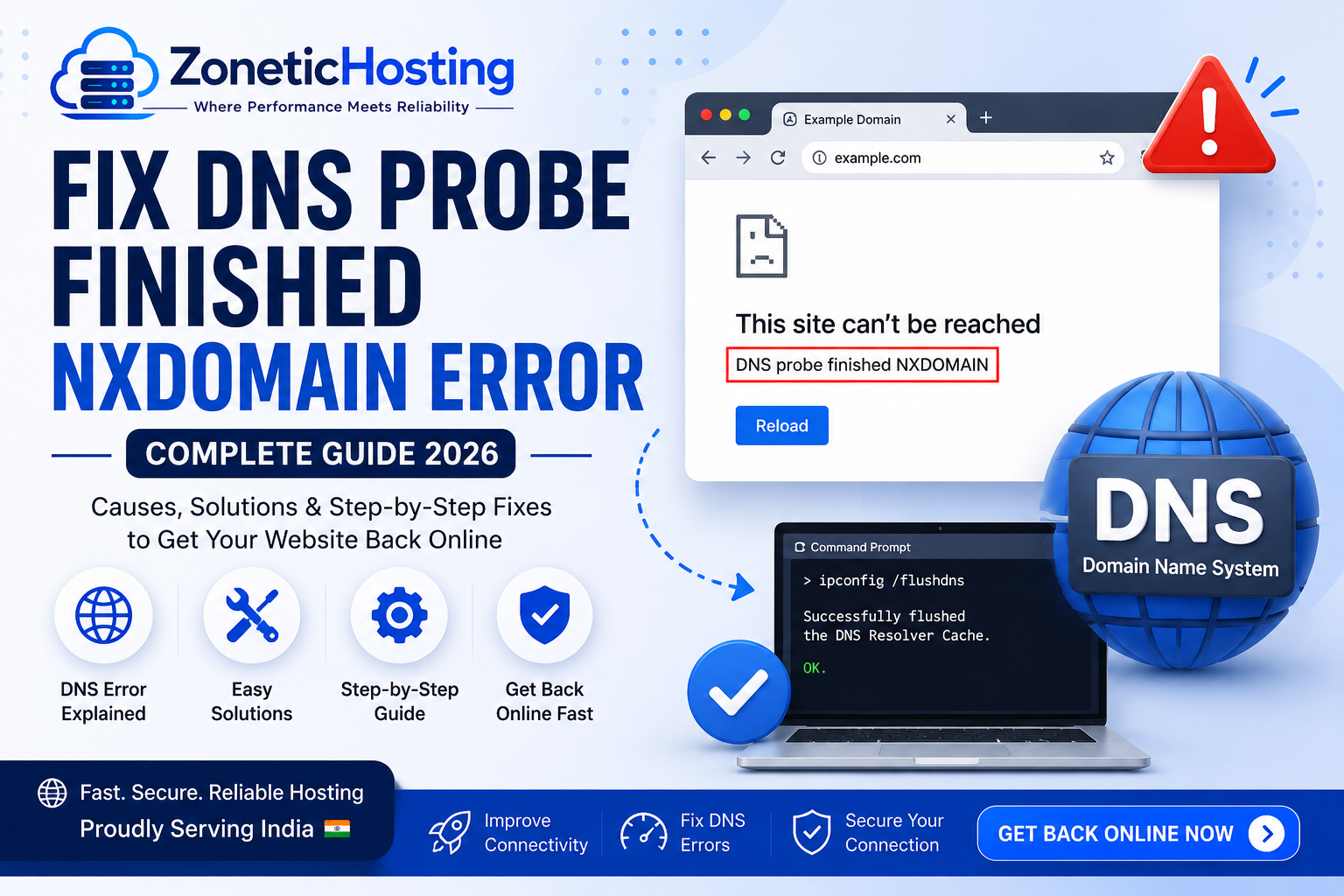
How to Fix DNS_PROBE_FINISHED_NXDOMAIN Error in Chrome – Complete Guide
If you are trying to open a website and Chrome shows the DNS_PROBE_FINISHED_NXDOMAIN error, it means your browser is unable to find the IP address associated with the domain name. In simple words, your computer is asking the DNS system where the website is located, but the DNS system cannot find a valid answer.
This error is common when setting up a new website, changing hosting providers, updating DNS records, connecting a domain to a VPS, or when your local DNS cache has outdated information.
The good news is that DNS_PROBE_FINISHED_NXDOMAIN is usually easy to fix once you identify whether the problem is with your device, DNS configuration, domain, or hosting server.
In this guide, we will explain what DNS_PROBE_FINISHED_NXDOMAIN means and show you several practical ways to fix it on Windows, macOS, Linux, Chrome, and VPS hosting environments.
What Does DNS_PROBE_FINISHED_NXDOMAIN Mean?
DNS stands for Domain Name System. It converts human-readable domain names such as:
example.com
into an IP address such as:
192.0.2.10
When you enter a website address in your browser, your device uses DNS to find the server where that website is hosted.
The DNS_PROBE_FINISHED_NXDOMAIN error appears when DNS cannot find the requested domain or its DNS records.
The term NXDOMAIN essentially means that the domain name does not exist from the perspective of the DNS resolver being used.
Chrome may display a message such as:
This site can't be reached
DNS_PROBE_FINISHED_NXDOMAIN
Common Causes of DNS_PROBE_FINISHED_NXDOMAIN
There are several possible reasons for this DNS error:
Domain DNS records are missing
Nameservers are incorrect
Domain is not connected to the hosting server
DNS changes have not propagated yet
Local DNS cache contains outdated information
DNS server is experiencing problems
Incorrect A record
Incorrect CNAME record
Domain has expired
Website was recently migrated to another hosting provider
Firewall or network configuration is interfering with DNS
VPS IP address was changed but DNS was not updated
Before changing anything, it is important to determine whether the problem affects only your computer or everyone trying to access the website.
How to Fix DNS_PROBE_FINISHED_NXDOMAIN
1. Check Whether the Domain Is Correct
The first thing you should do is check the website address carefully.
For example:
example.com
and
exmaple.com
are completely different domains.
Make sure there are no spelling mistakes and try opening the website again in an incognito/private browser window.
If the website still shows the error, continue with the next steps.
2. Check Your Domain DNS Records
One of the most common reasons for DNS_PROBE_FINISHED_NXDOMAIN is an incorrect DNS configuration.
For a normal website, your domain will generally need an A record pointing to your hosting server's IPv4 address.
For example:
Type: A
Name: @
Value: 203.0.113.10
TTL: 3600
For the www version, you can use either an A record or CNAME depending on your setup.
Example:
Type: CNAME
Name: www
Value: example.com
TTL: 3600
The exact records depend on your hosting configuration.
If your domain is hosted on a VPS, make sure the A record points to the correct VPS IP address.
Important
Do not blindly copy an IP address from another website. Your DNS record must point to your own hosting server.
3. Check Your Nameservers
If you recently purchased a domain or moved your website to a new hosting provider, verify your nameservers.
For example, your domain registrar might use nameservers such as:
ns1.exampledns.com
ns2.exampledns.com
If the domain is using incorrect nameservers, the DNS records you configured elsewhere may not be used.
Log in to your domain registrar and check which nameservers are currently assigned to the domain.
If you recently changed nameservers, remember that DNS changes can take time to propagate.
4. Flush DNS Cache on Windows
Windows stores DNS information locally. Sometimes an old or incorrect DNS entry can cause the DNS_PROBE_FINISHED_NXDOMAIN error.
Open Command Prompt as Administrator and run:
ipconfig /flushdns
You should see a message indicating that the DNS Resolver Cache was successfully flushed.
Then restart Chrome and try opening the website again.
You can also renew your IP configuration:
ipconfig /release
ipconfig /renew
After that, test the website again.
5. Flush DNS Cache on macOS
If you are using a Mac, DNS cache can also become outdated.
Open Terminal and run:
sudo dscacheutil -flushcache
sudo killall -HUP mDNSResponder
Enter your Mac password if requested.
Then close and reopen your browser and test the website.
6. Restart Your Router
Sometimes the DNS resolver provided by your internet connection may temporarily experience problems.
A simple router restart can refresh the connection.
Turn off your router, wait approximately 30 seconds, and turn it back on.
Then reconnect your device and try accessing the website again.
If other websites work normally but one particular domain does not, the problem is more likely related to that domain's DNS configuration.
7. Change Your DNS Server
If your current DNS resolver is having problems, try switching to another DNS service.
For example, you can test with a public DNS resolver such as:
Google DNS:
8.8.8.8
8.8.4.4
Or:
Cloudflare DNS:
1.1.1.1
1.0.0.1
After changing your DNS server, restart your browser and test the website again.
Why does this help?
Your internet provider may use its own DNS resolver. If that resolver has stale or incorrect information, switching to another resolver can help determine whether the problem is DNS-provider related.
8. Check DNS Propagation
If you recently:
Registered a new domain
Changed nameservers
Changed an A record
Moved your website to another server
Changed your VPS IP address
then DNS propagation may still be in progress.
For example, suppose your old server was:
203.0.113.10
and you moved your website to:
203.0.113.20
You must update the domain's A record.
After changing the record, different DNS resolvers may temporarily return different results.
Therefore, don't assume that a DNS change has failed immediately after making it.
9. Check DNS From the Command Line
You can test DNS resolution directly from your computer.
Windows
Open Command Prompt:
nslookup example.com
macOS or Linux
Open Terminal:
nslookup example.com
You can also use:
dig example.com
If the domain is correctly configured, you should receive an IP address.
For example:
Name: example.com
Address: 203.0.113.20
If the response indicates that the domain cannot be found, investigate the domain's DNS configuration.
10. Check the A Record of Your Domain
For websites hosted on VPS servers, the A record is particularly important.
Your DNS should point the domain to the public IP address of your VPS.
Example:
example.com → 203.0.113.20
If the VPS IP is:
203.0.113.20
but the DNS record still points to:
203.0.113.10
your domain may connect to the wrong server.
If the old server no longer exists or the domain has no valid DNS record, DNS-related errors can occur.
11. Check the Domain Expiry
Another important thing to check is whether your domain is active.
If your domain registration has expired, DNS resolution may stop working.
Log in to your domain registrar and check:
Domain status
Expiration date
Nameservers
DNS records
Registrar status
If the domain has expired, renew it before troubleshooting your server.
12. Check DNS Configuration for a VPS
If you are hosting your website on an Ubuntu VPS, make sure your domain points to the VPS public IP.
For example:
A record
@ → YOUR_VPS_IP
and:
A record
www → YOUR_VPS_IP
After DNS starts resolving correctly, you can check your web server configuration.
For Nginx, test the configuration using:
sudo nginx -t
If the configuration is correct, reload Nginx:
sudo systemctl reload nginx
Remember that DNS resolution and Nginx configuration are different things.
If DNS cannot find your server, fixing Nginx alone will not solve DNS_PROBE_FINISHED_NXDOMAIN.
13. Check Whether the Problem Is Local or Global
This is one of the most useful troubleshooting steps.
If the website opens normally on your phone using mobile data but does not open on your Wi-Fi connection, the problem may be related to your local network or DNS resolver.
If the website fails everywhere, including different networks, devices, and locations, the problem is more likely related to the domain's DNS configuration.
Try checking the website from:
Your computer
Your phone
Mobile data
Another Wi-Fi network
This can quickly help identify the source of the problem.
14. Restart Chrome
Sometimes Chrome may temporarily retain network information.
Try completely closing Chrome and opening it again.
You can also test the website in an Incognito window:
Chrome → New Incognito Window
Then enter your domain again.
If the website works in Incognito but not in your normal browser, browser cache or extensions may be contributing to the problem.
15. Disable VPN or Proxy Temporarily
If you are using a VPN or proxy, temporarily disable it and test the website.
Some VPN or proxy services use their own DNS resolvers.
This can sometimes cause unexpected DNS resolution problems.
If the website starts working after disabling the VPN, the DNS issue may be related to that network configuration.
DNS_PROBE_FINISHED_NXDOMAIN vs Other Connection Errors
It is important not to confuse DNS errors with server errors.
DNS_PROBE_FINISHED_NXDOMAIN
Usually indicates a DNS/domain resolution problem.
ERR_CONNECTION_REFUSED
Usually means the server rejected the connection.
ERR_CONNECTION_TIMED_OUT
Usually indicates that the server did not respond within the expected time.
ERR_SSL_PROTOCOL_ERROR
Usually indicates an SSL/TLS or HTTPS configuration problem.
502 Bad Gateway
Usually indicates a problem between a reverse proxy such as Nginx and the backend application.
Understanding the difference can save a lot of troubleshooting time.
Quick Fix Checklist
If you are facing DNS_PROBE_FINISHED_NXDOMAIN, check these things in order:
✓ Check domain spelling
✓ Check domain registration status
✓ Check nameservers
✓ Check A record
✓ Check CNAME record
✓ Verify VPS IP address
✓ Flush local DNS cache
✓ Restart router
✓ Try another DNS resolver
✓ Test with nslookup or dig
✓ Check DNS propagation
✓ Test from another network
✓ Check Nginx after DNS starts resolving
How to Prevent DNS_PROBE_FINISHED_NXDOMAIN in the Future
To avoid DNS problems when managing a website or VPS:
Keep DNS records organized
Only keep the records that your website and services actually require.
Record your server IP
Whenever you migrate servers, carefully update your DNS records.
Avoid unnecessary DNS changes
Frequent changes can make troubleshooting more complicated.
Monitor domain expiry
Always keep your domain registration active.
Verify nameservers
Make sure your domain is using the intended DNS provider.
Keep hosting information documented
Maintain a record of your:
Domain
Nameservers
VPS IP
DNS records
Hosting provider
SSL configuration
This makes future migrations and troubleshooting much easier.
Final Thoughts
The DNS_PROBE_FINISHED_NXDOMAIN error usually indicates that your browser cannot resolve the requested domain through DNS. The problem can be caused by incorrect DNS records, wrong nameservers, an expired domain, DNS propagation, local DNS cache, or a problematic DNS resolver.
If you manage a website on a VPS, start by checking the domain's A record and nameservers. Once DNS correctly points to your server, you can move on to checking Nginx, SSL, firewall, and application configuration.
For most cases, following the troubleshooting steps above will help you identify whether the problem is with your domain, DNS provider, local network, or hosting server.
If you are looking for reliable VPS hosting for websites, applications, and development projects, choose a hosting environment where you have proper control over your server, DNS, and deployment configuration.

Have a question about hosting?
Our team can help you pick the right plan for your website.