How to Fix DNS_PROBE_FINISHED_BAD_CONFIG Error in Chrome
Getting DNS_PROBE_FINISHED_BAD_CONFIG in Chrome? Learn how to fix DNS configuration errors using cache, DNS servers, network, router, hosting and VPS troubleshooting.
Zonetic Hosting Team
Blogger & SEO Expert
In this article
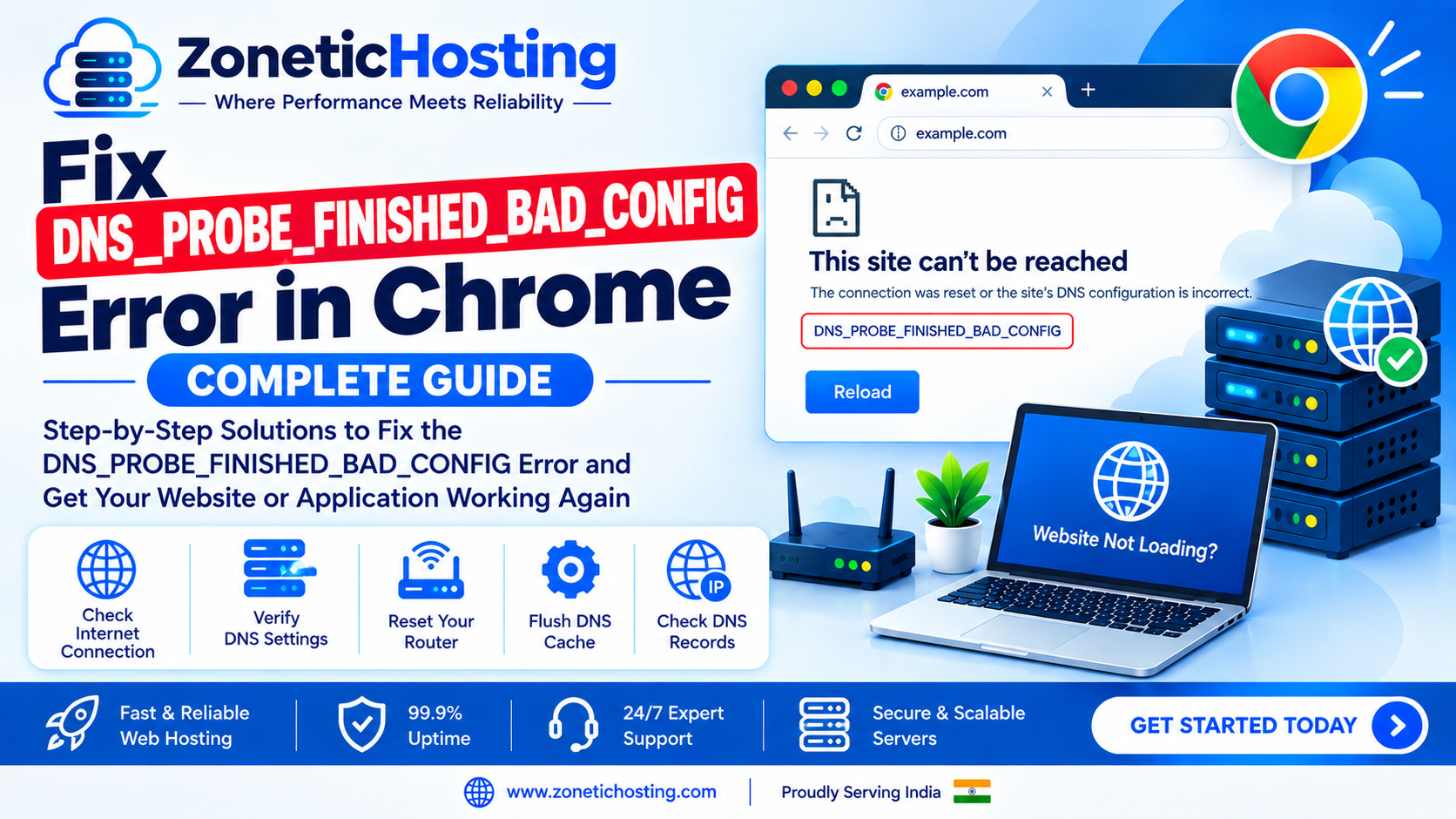
How to Fix DNS_PROBE_FINISHED_BAD_CONFIG Error in Chrome
If Chrome shows the DNS_PROBE_FINISHED_BAD_CONFIG error while trying to open a website, it usually means there is a problem with your DNS configuration. Your device is unable to properly communicate with the DNS server or resolve the website's domain name.
This error can occur because of incorrect DNS settings, corrupted DNS cache, network problems, router issues, VPN or proxy settings, or problems with the website's DNS configuration.
In this guide, we will explain how to fix DNS_PROBE_FINISHED_BAD_CONFIG in Chrome using simple troubleshooting methods.
What Does DNS_PROBE_FINISHED_BAD_CONFIG Mean?
DNS stands for Domain Name System. It converts domain names such as example.com into IP addresses that computers use to connect to servers.
When Chrome cannot complete the DNS lookup correctly, it may display:
This site can't be reached
DNS_PROBE_FINISHED_BAD_CONFIG
The problem can be caused by your computer, internet connection, DNS server, router, or the website's DNS configuration.
Common Causes of DNS_PROBE_FINISHED_BAD_CONFIG
Some of the most common causes include:
Incorrect DNS server settings
Corrupted DNS cache
Network configuration problems
Router or modem issues
Unstable internet connection
VPN or proxy interference
Incorrect DNS records
DNS server outage
Incorrect IPv4 or IPv6 settings
Firewall or security software
Problems with hosting or VPS DNS configuration
Let's troubleshoot the error step by step.
1. Check Your Internet Connection
Start by checking whether your internet connection is working properly.
Open another website in Chrome and see whether it loads.
If multiple websites are not opening, the problem may be related to your internet connection rather than the specific website.
Try:
Disconnecting and reconnecting Wi-Fi
Restarting your router
Switching to mobile hotspot
Testing the website on another device
If the website works on another network, your current network or DNS configuration may be responsible.
2. Restart Your Router
A router can sometimes cache incorrect DNS information.
Turn off your router and wait for around 30 seconds.
Then turn it back on and reconnect your computer.
After the connection is restored, open Chrome and test the website again.
This simple step can resolve temporary DNS and network problems.
3. Restart Chrome
Sometimes Chrome itself can temporarily experience DNS-related issues.
Close all Chrome windows and reopen the browser.
Then visit the website again.
You can also test the website using Chrome's Incognito Mode.
If the website works in Incognito Mode, a browser extension or cached data may be causing the problem.
4. Disable VPN and Proxy
VPN applications and proxy servers can change how your device handles DNS requests.
If you are using a VPN, disconnect it temporarily.
Also check your system's proxy settings and disable the proxy if you don't need it.
After disabling VPN or proxy, restart Chrome and test the website.
5. Clear Chrome DNS Cache
Chrome maintains its own DNS cache.
To clear it, open:
chrome://net-internals/#dns
Click:
Clear host cache
After clearing the cache, close and reopen Chrome.
Then try opening the website again.
6. Flush DNS Cache on Windows
Windows stores recently resolved DNS information.
If this cache becomes outdated or corrupted, it can cause DNS errors.
Open Command Prompt as Administrator and run:
ipconfig /flushdns
You should receive a message confirming that the DNS resolver cache was successfully flushed.
Then restart Chrome.
You can also reset the network configuration with:
ipconfig /release
ipconfig /renew
Then test the website again.
7. Flush DNS Cache on macOS
On macOS, DNS cache commands can vary depending on the version.
A commonly used command is:
sudo dscacheutil -flushcache; sudo killall -HUP mDNSResponder
Enter your Mac password when prompted.
After running the command, reopen Chrome and check the website.
8. Flush DNS Cache on Linux
If your Linux system uses systemd-resolved, you can flush the DNS cache using:
sudo resolvectl flush-caches
You can check your DNS resolver configuration with:
resolvectl status
If your Linux system uses a different DNS service, the appropriate command may be different.
9. Change Your DNS Server
One of the most effective solutions is changing your DNS server.
Your internet provider's DNS server may be slow, unavailable, or temporarily experiencing problems.
You can test public DNS servers such as:
Google DNS
8.8.8.8
8.8.4.4
Cloudflare DNS
1.1.1.1
1.0.0.1
After changing the DNS server, reconnect to the network and open Chrome again.
If the website starts working, the previous DNS resolver may have been causing the issue.
10. Check DNS Using nslookup
You can use nslookup to determine whether your computer can resolve a domain.
Run:
nslookup example.com
A successful lookup should return an IP address.
You can also test Google's DNS resolver:
nslookup example.com 8.8.8.8
If the domain works with one DNS server but not another, the problem may be related to the DNS resolver you're currently using.
11. Use dig to Troubleshoot DNS
Linux and macOS users can use dig for more detailed DNS information.
Run:
dig example.com
To check the A record:
dig example.com A
To check nameservers:
dig example.com NS
You can also test a specific DNS resolver:
dig @1.1.1.1 example.com
These commands can help identify whether the domain is resolving correctly.
12. Check the Domain's A Record
If you own the website, check its DNS records.
The A record points the domain to an IPv4 address.
For example:
example.com → YOUR_VPS_IP
Make sure the IP address is correct.
If the A record points to the wrong server or doesn't exist, users may experience DNS errors.
13. Check the AAAA Record
An AAAA record points a domain to an IPv6 address.
If you have an incorrect AAAA record while your server isn't properly configured for IPv6, visitors may experience connectivity problems.
Check whether your domain has an AAAA record.
If you don't use IPv6, make sure there isn't an incorrect IPv6 address configured.
14. Check CNAME Records
CNAME records are commonly used for subdomains.
For example:
www.example.com → example.com
Check that your www record points to the correct destination.
Also test both versions of the website:
example.com
www.example.com
If only one version fails, the problem may be related to its DNS record.
15. Check Your Nameservers
Nameservers determine which DNS provider manages your domain's DNS records.
You can check the nameservers with:
dig example.com NS
Make sure the nameservers configured at your domain registrar match the DNS provider where your records are configured.
Incorrect nameservers can prevent DNS records from being found correctly.
16. Check If Your Domain Has Expired
If your own website suddenly stops resolving, check your domain registration.
Log in to your domain registrar and verify:
Domain expiration date
Domain status
Nameservers
DNS records
Registration status
If the domain has expired, renew it and allow DNS services to become active again.
17. Check DNS Propagation
If you recently changed DNS records or nameservers, DNS propagation may be the reason for the error.
Changes to:
A records
AAAA records
CNAME records
Nameservers
may take time to appear across different DNS resolvers.
If the website works from one network but not another, DNS propagation or resolver caching may be involved.
18. Check Your Hosts File
The hosts file can override normal DNS resolution.
On Linux and macOS, check:
/etc/hosts
On Windows:
C:\Windows\System32\drivers\etc\hosts
Look for entries related to your domain.
For example:
127.0.0.1 example.com
An incorrect entry can prevent your computer from connecting to the actual website server.
Only modify the hosts file if you understand what the entry does.
19. Temporarily Check Firewall and Security Software
Firewall or security software can sometimes interfere with network and DNS requests.
If you recently installed security software or changed firewall settings, check whether it is blocking DNS traffic.
Do not permanently disable your firewall just to fix the error.
Instead, review its DNS, network, and application rules and make sure legitimate connections are allowed.
20. Check Your VPS or Hosting DNS Configuration
If the error occurs on a website hosted on your VPS or hosting server, check your DNS configuration from the server side.
Verify:
Domain points to the correct VPS IP
A record is correct
AAAA record is correct
Nameservers are configured correctly
DNS zone exists
Domain is active
Firewall allows required traffic
Nginx or Apache is configured correctly
For Nginx, check the configuration using:
sudo nginx -t
If DNS resolves correctly but the website still doesn't open, the issue may be related to Nginx, Apache, firewall, ports, SSL, or the application itself rather than DNS.
DNS_PROBE_FINISHED_BAD_CONFIG vs Other DNS Errors
Several Chrome errors look similar but can indicate different problems.
DNS_PROBE_FINISHED_BAD_CONFIG
Usually indicates a problem with DNS configuration, DNS servers, or local network settings.
DNS_PROBE_FINISHED_NXDOMAIN
Usually means the DNS lookup indicates that the requested domain does not exist or cannot be found.
ERR_NAME_NOT_RESOLVED
Means Chrome could not resolve the domain name to an IP address.
ERR_CONNECTION_TIMED_OUT
The domain may resolve successfully, but the server does not respond within the expected time.
ERR_CONNECTION_REFUSED
The server can be reached, but the connection is being refused, often because a service isn't listening on the required port.
Understanding the exact Chrome error helps identify where to start troubleshooting.
Quick Fix Checklist
If you are getting DNS_PROBE_FINISHED_BAD_CONFIG, try these solutions in order:
Check your internet connection.
Restart your router.
Restart Chrome.
Try Incognito Mode.
Disable VPN or proxy.
Clear Chrome's DNS cache.
Flush your system DNS cache.
Change DNS to
1.1.1.1or8.8.8.8.Run
nslookupto test DNS resolution.Check A and AAAA records.
Verify CNAME records.
Check your domain nameservers.
Check domain expiration.
Wait for DNS propagation after recent changes.
Check your hosts file.
Review firewall and security software.
Check your hosting or VPS DNS configuration.
How to Prevent DNS_PROBE_FINISHED_BAD_CONFIG
You can reduce DNS problems by following a few good practices:
Use reliable DNS providers.
Keep your domain registration active.
Avoid unnecessary DNS changes.
Regularly check important DNS records.
Keep A, AAAA, and CNAME records accurate.
Monitor your domain and VPS.
Keep nameservers correctly configured.
Avoid incorrect DNSSEC settings.
Document your DNS configuration before making major changes.
Keep your hosting server and DNS records synchronized.
Conclusion
The DNS_PROBE_FINISHED_BAD_CONFIG error in Chrome is usually related to DNS or network configuration.
The quickest solutions are to restart your network, clear DNS caches, change your DNS server, and verify that your domain's DNS records are configured correctly.
If the problem affects your own website, check the domain's A record, AAAA record, CNAME, nameservers, DNS propagation, and hosting or VPS configuration.
Once DNS is correctly configured and your domain resolves to the correct server, Chrome should be able to connect to your website normally.

Have a question about hosting?
Our team can help you pick the right plan for your website.